Migrating to Microsoft 365: a practical guide for SMEs
Steps, pitfalls to avoid, and a realistic budget for migrating your SME to Microsoft 365. Email, files, Teams: what you need to plan.

Why migrate to Microsoft 365?
The question is no longer really “why” — in 2026, Microsoft 365 has become the standard for SMEs. Exchange Online email, OneDrive and SharePoint storage, Teams video conferencing, up-to-date Office suite: a single subscription replaces an aging Exchange server, perpetual licenses, and a VPN for file access.
The real question is how to migrate without breaking what already works.
According to Microsoft, over 300 million active business users rely on Microsoft 365 every month. For small and mid-sized businesses, migration often represents a leap of 5 to 10 years over accumulated technical debt — end-of-life Exchange servers, unsupported Office 2016 licenses, files scattered across local NAS devices. When well planned, migration takes 2 to 6 weeks. When poorly planned, it can cripple your email for days.
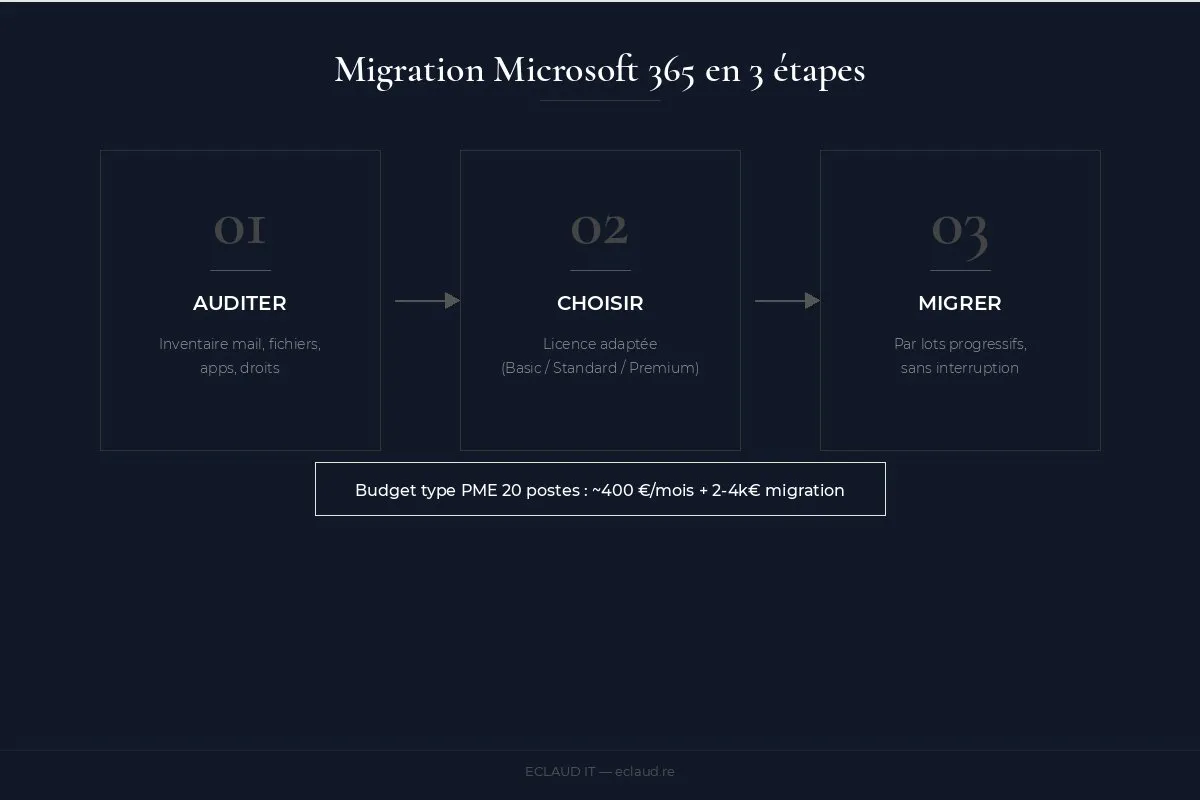

Step 1: Audit your existing environment
Before touching anything:
- Mailbox inventory: how many? What size? Any shared mailboxes?
- Shared files: local file server, NAS, Drive? What volume?
- Line-of-business applications: dependencies on Outlook, Excel macros, add-ins?
- Access and permissions: who has access to what? Is Active Directory in place?
This initial audit takes 2 to 4 hours on-site.
What surprises most during this audit: the actual data volume. A 20-person SME thinks it has “a few hundred GB” of emails and files. In reality, you often find 2 to 5 TB of files accumulated over 10 years, with duplicates, archives from completed projects, and training videos no one ever watched. Before migrating, you need to clean up. Migrating noise to the cloud means paying to store noise.
Application dependencies are the other pitfall. A line-of-business application (ERP, CRM, invoicing) may have been configured to authenticate via the local Active Directory or send emails through the internal Exchange server. If these connections are not remapped before the switch, critical functionality stops overnight.
Step 2: Choose the right license
| License | Price/month/user | What’s included |
|---|---|---|
| Business Basic | Check Microsoft pricing | Web services and storage subject to the current licence terms |
| Business Standard | Check Microsoft pricing | Desktop services subject to the current licence terms |
| Business Premium | Check Microsoft pricing | Security and management features subject to the current licence terms |
Our recommendation for SMEs: Business Premium. The extra cost is justified by the security features (Intune for device management, Conditional Access, advanced anti-phishing protection). This license integrates seamlessly with our IT maintenance contracts for unified fleet management.
How to choose between licenses? The simple rule: if your employees need Office installed on their workstations (Word, Excel, Outlook as desktop applications), Business Standard is the minimum. If you have security or device management needs — remote work, mobile workstations, sensitive data — Business Premium is the way to go.
Business Basic can work for profiles that work exclusively through a browser (reception staff, assistants, some sales reps). But be aware: Office web apps are less fully featured than desktop applications, and some Excel macros do not work online.
The mixed-license pitfall: many SMEs start with a mix of licenses (Basic for some, Standard for others). It is manageable, but it complicates administration and creates access disparities that generate support requests. If the budget allows, standardizing on a single license simplifies everything.
Step 3: Plan migration in batches
Do not migrate everything at once. We proceed in batches:
- Batch 1 — Management (2-3 mailboxes): test migration, workflow validation
- Batch 2 — Pilot team (5-10 mailboxes): feedback, adjustments
- Batch 3 — Rest of the company: mass migration, typically over a weekend
For files, the OneDrive/SharePoint migration runs in parallel using Microsoft Migration Manager.
How to manage coexistence between the old system and Microsoft 365?
Between the start of migration and the final switchover, both systems coexist — the legacy on-premises Exchange and Exchange Online. This is the most delicate period.
During coexistence, emails may arrive in one system or the other depending on DNS configuration. Migrated users see their emails in Outlook 365, while others continue using the old email system. If the MX records still point to the local server, incoming mail for already-migrated mailboxes must be redirected — via a routing connector.
The cleanest approach: migrate by entire department (all of management, then the entire sales team, etc.) rather than by individual. This limits cross-redirections and simplifies internal communication during the transition.
Recommended coexistence duration: 1 to 3 weeks maximum. Beyond that, the complexity of maintaining two systems outweighs the benefit. Set a final switchover date at the start of the project — and stick to it.
SPF, DKIM, DMARC: why they are essential
This is the technical point SMEs overlook the most — and the one that costs the most to fix after the fact.
SPF (Sender Policy Framework) tells email servers worldwide which servers are authorized to send emails on behalf of your domain. Without SPF, anyone can send emails that appear to come from @your-company.com. With a misconfigured SPF after migration, your own emails may be flagged as spam. Microsoft details the SPF configuration for Microsoft 365 in its official documentation.
DKIM (DomainKeys Identified Mail) adds a cryptographic signature to every outgoing email. The receiving server verifies this signature to ensure the email was not modified in transit. Microsoft 365 generates the DKIM keys — you just need to add two CNAME records to your DNS zone.
DMARC (Domain-based Message Authentication) builds on SPF and DKIM to define what should happen with emails that fail verification: quarantine them, reject them, or simply report them. A basic DMARC record (p=none) at first lets you receive reports without blocking emails — then you move to p=quarantine or p=reject once the configuration is validated.
These three DNS records can be configured in 30 minutes. Not configuring them exposes your domain to identity spoofing and degrades your deliverability — your emails end up in your clients’ spam folders.
OneDrive vs SharePoint: how to choose?
The question comes up systematically during migrations. Both are included in Microsoft 365, but they serve different purposes.
OneDrive is each user’s personal storage. It is their individual workspace — work-in-progress documents, personal files, drafts. It syncs automatically with the user’s PC. When someone leaves the company, OneDrive content belongs to the user (or to the organization depending on the configured policy).
SharePoint is collaborative storage. This is where team files, reference documents, templates, and contracts live. A SharePoint site can be shared with an entire team, with differentiated permissions per folder. Teams relies on SharePoint behind the scenes — each Teams channel has a corresponding SharePoint folder.
Simple rule for SMEs: OneDrive for personal and in-progress files, SharePoint for everything shared that needs to remain accessible regardless of any individual user. Legacy file servers (NAS, shared drives) migrate to SharePoint — not to OneDrive. The Microsoft SharePoint planning guide details best practices for structuring SharePoint for SMEs.
A practical point: SharePoint can be synced locally via the OneDrive client. For the end user, it looks like a classic network folder in Windows Explorer — no need to go through a browser.

Driving Teams adoption
The technical migration to Teams is the easy part. Real adoption — getting teams to actually use it — is the main challenge.
The most common obstacles: old habits (continuing to send internal emails instead of using Teams), channel overload (too many teams created without structure), and the fear of “missing” messages.
A few practices that work:
Set a date to stop internal emails. Not a suggestion — a rule. “Starting March 1st, internal communications go through Teams.” This forces adoption without leaving the option to revert.
Structure teams before launch. One team per department, a default “General” channel, two or three thematic channels max. If users arrive on Teams and see 15 empty channels, they do not know where to go.
Train through usage, not theory. A 20-minute demo on “how to share a file in Teams without sending an attachment” is worth more than a full day of PowerPoint training.
What are the pitfalls to avoid during a Microsoft 365 migration?
- Misconfigured DNS: MX records, autodiscover, SPF/DKIM/DMARC — one mistake and emails stop flowing
- No training: users lose their bearings if they are not guided through the change
- Forgetting backups: Microsoft 365 does not back up your data by default. A third-party solution like Acronis or Veeam is essential
- Oversized licenses: an E5 plan is not needed for a 15-person SME
On the backup point: Microsoft is responsible for the availability of its infrastructure, not for restoring your data in case of accidental deletion, ransomware attack, or user error. The OneDrive recycle bin keeps deleted files for 93 days — but that is not a backup. A third-party solution like Acronis Cyber Backup or Veeam Backup for Microsoft 365 backs up your emails, OneDrive, and SharePoint with configurable retention and granular restore.
What budget should an SME plan for Microsoft 365 migration?
For a 20-user SME on Business Premium:
- Subscription: verify Microsoft pricing for the selected licences
- Migration: scope after mailbox, data-volume and dependency inventory
- Training: scope the audience, content and duration
The initial and recurring budgets must be calculated from the current licence terms and the written migration scope.
Where to start?
An audit of your current infrastructure can scope the migration: number of mailboxes, data volumes and application dependencies. Its deliverables, duration, cost and timeline are confirmed before work begins; no client reference is asserted here.
See also: our secure remote work guide with Microsoft 365, how to back up your Microsoft 365 data, our IT audit checklist, and outsourcing IT maintenance for SMEs. Migration and post-migration maintenance are covered in our managed IT service contracts.
Frequently asked questions
How long does a Microsoft 365 migration take?
For an SME of 10 to 30 users without complex application dependencies, expect 2 to 4 weeks from the first audit to the final switchover. This includes the audit phase (1 week), tenant and DNS configuration (3 to 5 days), batch migration (1 to 2 weeks), and user training. For more complex environments (federated Active Directory, ERP with Exchange integration), the timeline can extend to 6 to 8 weeks.
Can you migrate to Microsoft 365 without service interruption?
Yes — that is the goal of a planned batch migration. Email remains operational throughout the migration thanks to Exchange coexistence. The final switchover (MX record change) is typically done on a Friday evening or weekend, with a DNS propagation delay of 15 minutes to 4 hours depending on the configured TTL. Users resume work on Monday morning on the new platform, without having lost a single email.
Do users need training after the migration?
Absolutely. Training is not optional — it is what determines whether the migration truly succeeds. Without training, users continue with old habits (internal emails instead of Teams, file attachments instead of SharePoint links) and the return on investment of the migration is cut in half. Two 2-hour sessions are sufficient: one on email and Teams, one on OneDrive/SharePoint and file management.
Which Microsoft 365 license should an SME choose?
Business Premium and Business Standard cover different needs. Features, limits and prices must be checked against current Microsoft documentation, then compared with identity, device-management and security requirements.